

How to Use the B l a c k S t a r L a u n c h e r:
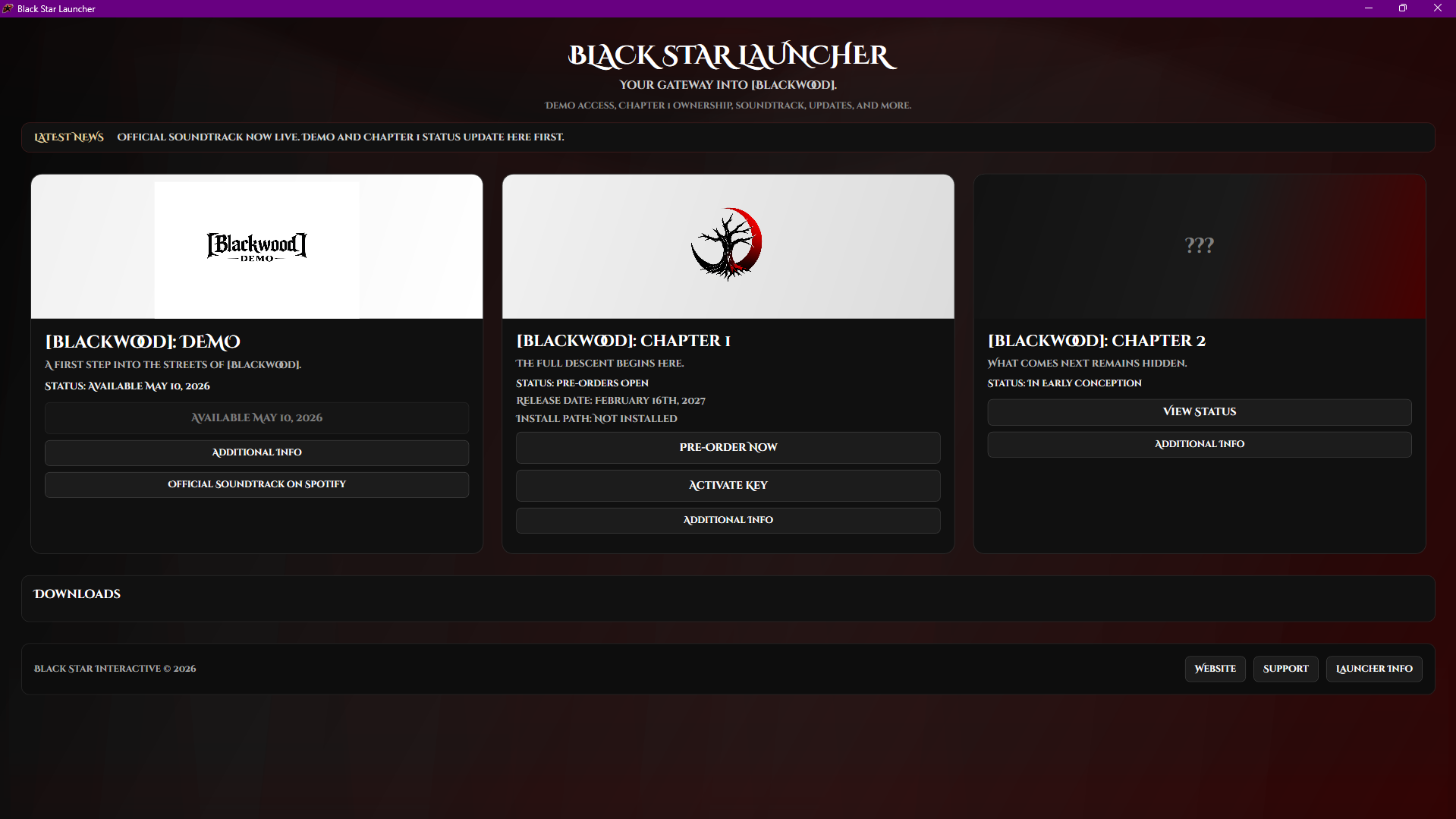
The Black Star Launcher is your main hub for everything related to [Blackwood]. It’s where you’ll be able to check the status of the demo and full game, download available releases, activate your key, install updates, and launch the game once it’s installed. Right now, it also works as a place to stay up to date while waiting for [Blackwood]: Chapter 0 and the demo to officially release.
1. Download and Open the Launcher
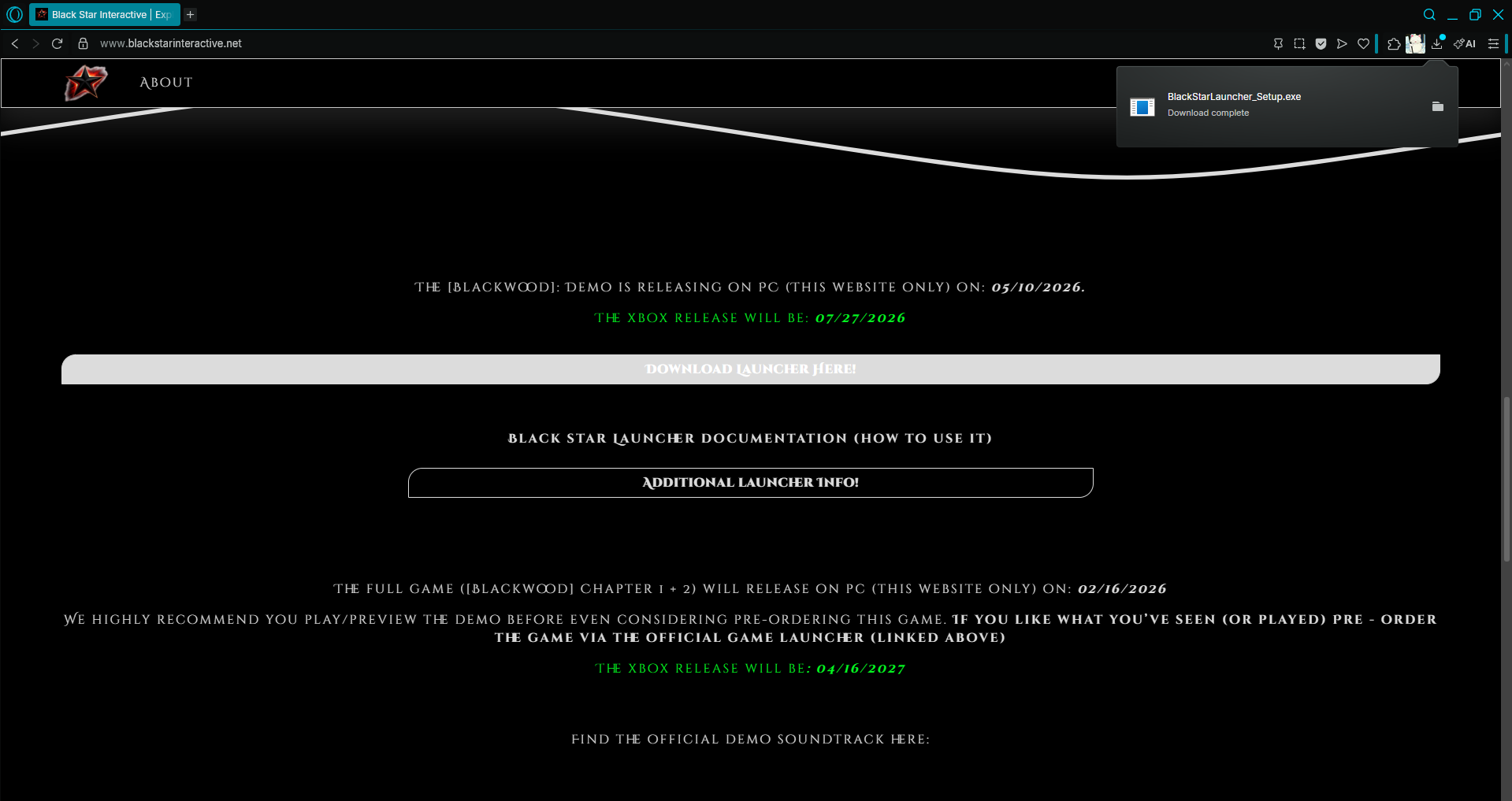
Start by downloading the Black Star Launcher from the official Black Star Interactive website. Once it finishes downloading, open the installer or launcher folder and run the launcher application. If Windows shows a security prompt, just allow it to run.
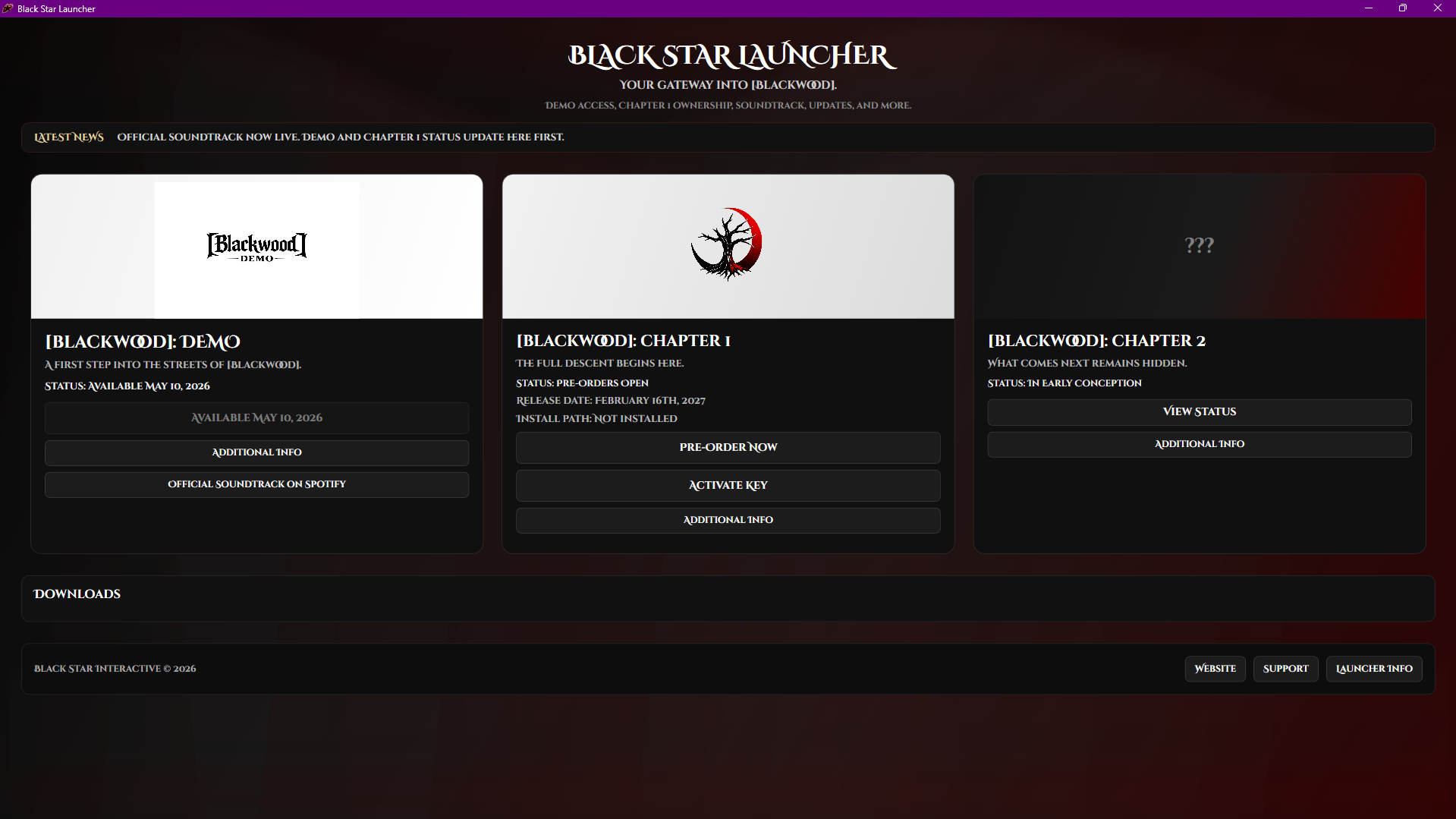
When it opens, you’ll be brought to the launcher’s main menu.
2. Understanding the Main Menu
The launcher is divided into different sections for current and future Blackwood content.
You’ll be able to see:
the Demo section
the Chapter 1 section
future content or status sections
extra information links
release status messages
install/update/play buttons when content becomes available
Each section will show whether something is:
not available yet
available now
ready to download
installed
or needs an update
3. The Demo Section
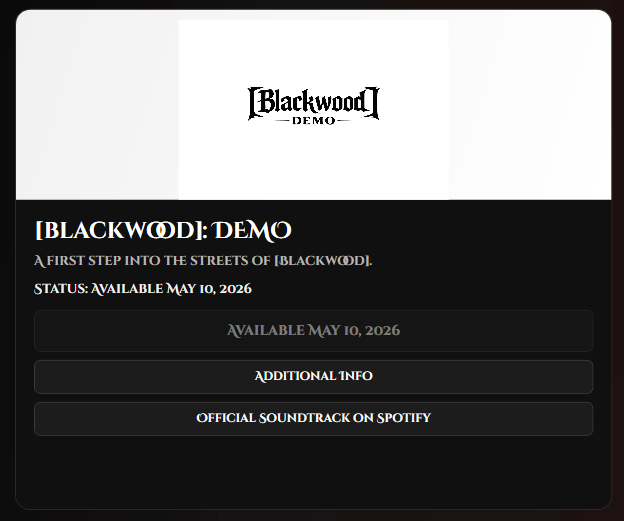
The Demo section is where you’ll be able to access the Blackwood demo when it goes live.
Before release, this section will show that the demo is not available yet and will display its release date. Once the demo officially releases, the launcher will update and allow you to download it directly.
You can also use the Additional Info button in that section to view more details and updates about the demo.
If the demo is not out yet, that’s normal. The launcher is just showing you the current status until release day.
4. The Chapter 1 Section
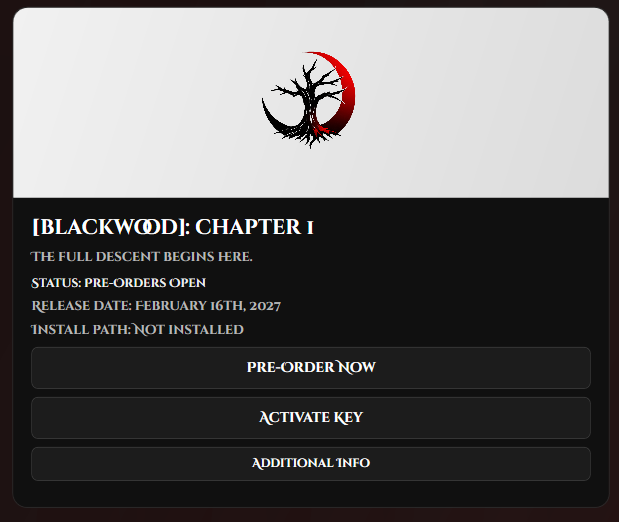
The Chapter 1 section is for the full game.
This section lets you:
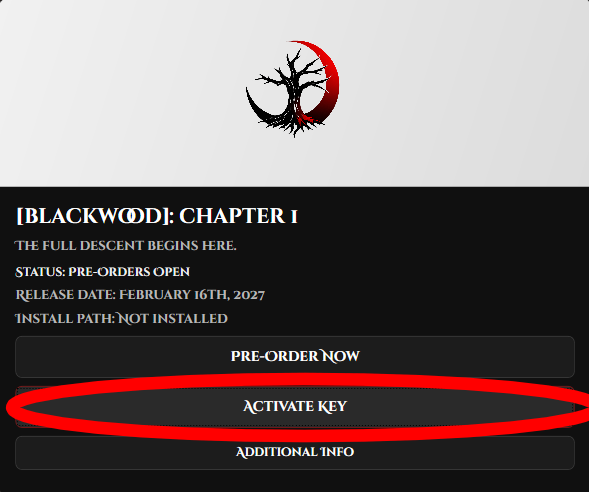
see whether pre-orders are open
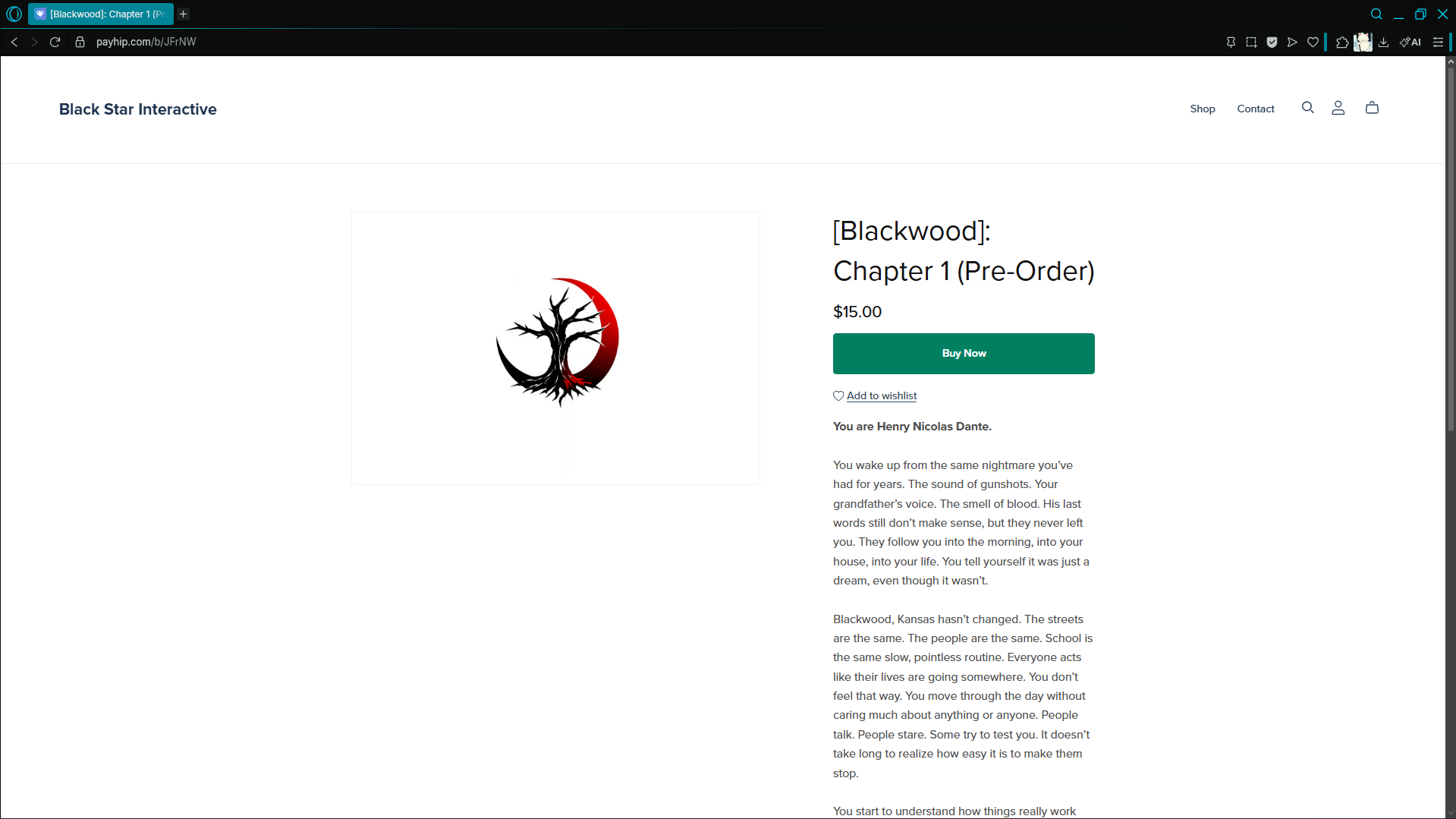
buy the game
activate your key
download the full game when available
install updates later
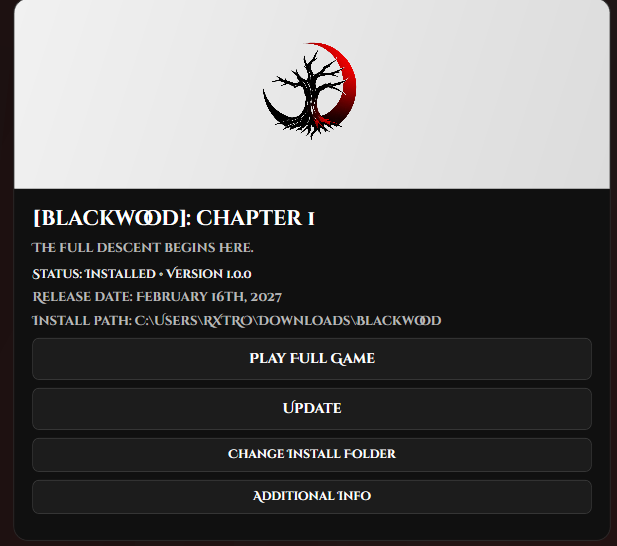
launch the game once installed
If the game has not released yet, the launcher will tell you. If it has released, the launcher will update the status and change the available options.
5. How to Activate Your Key
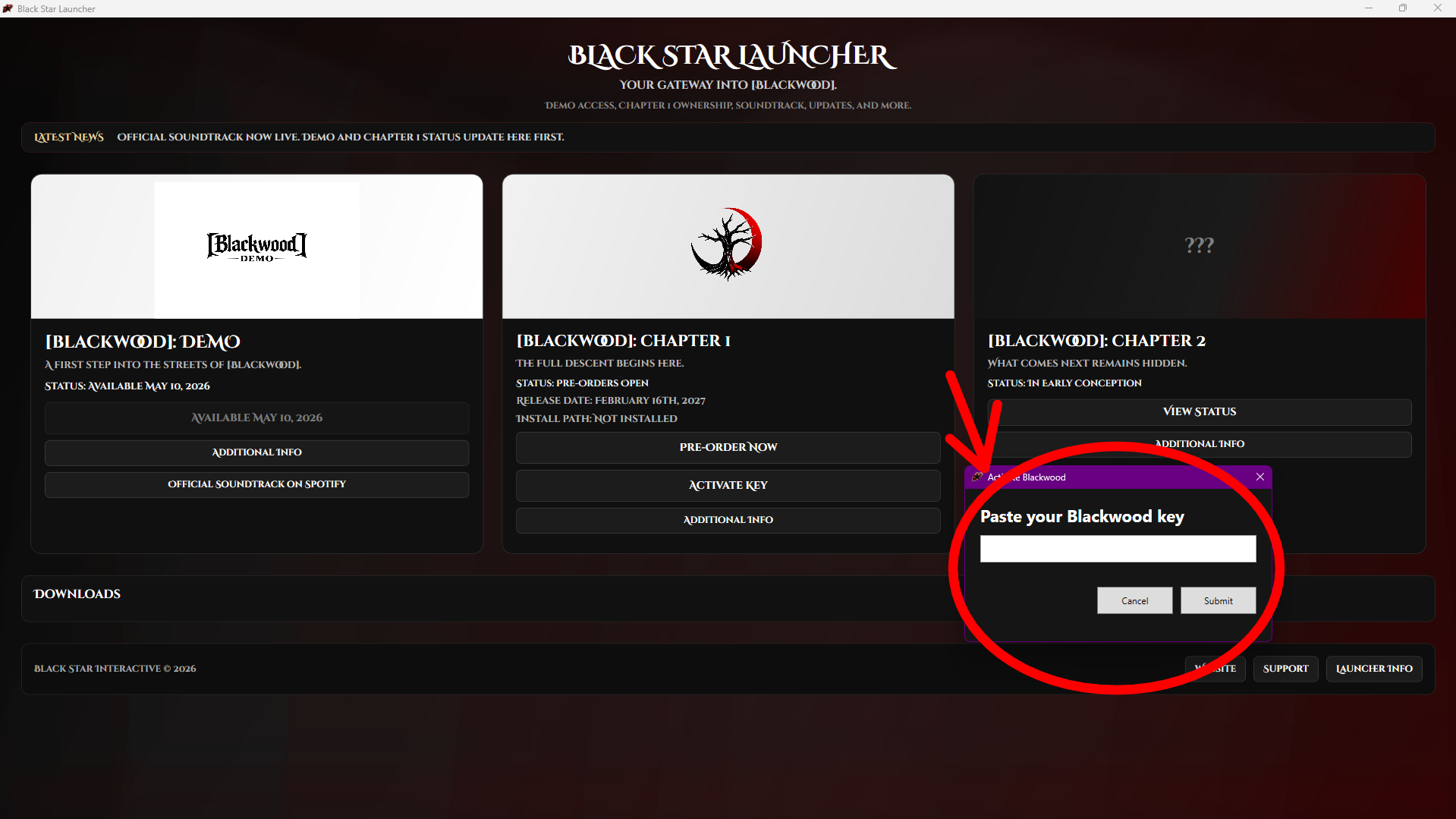
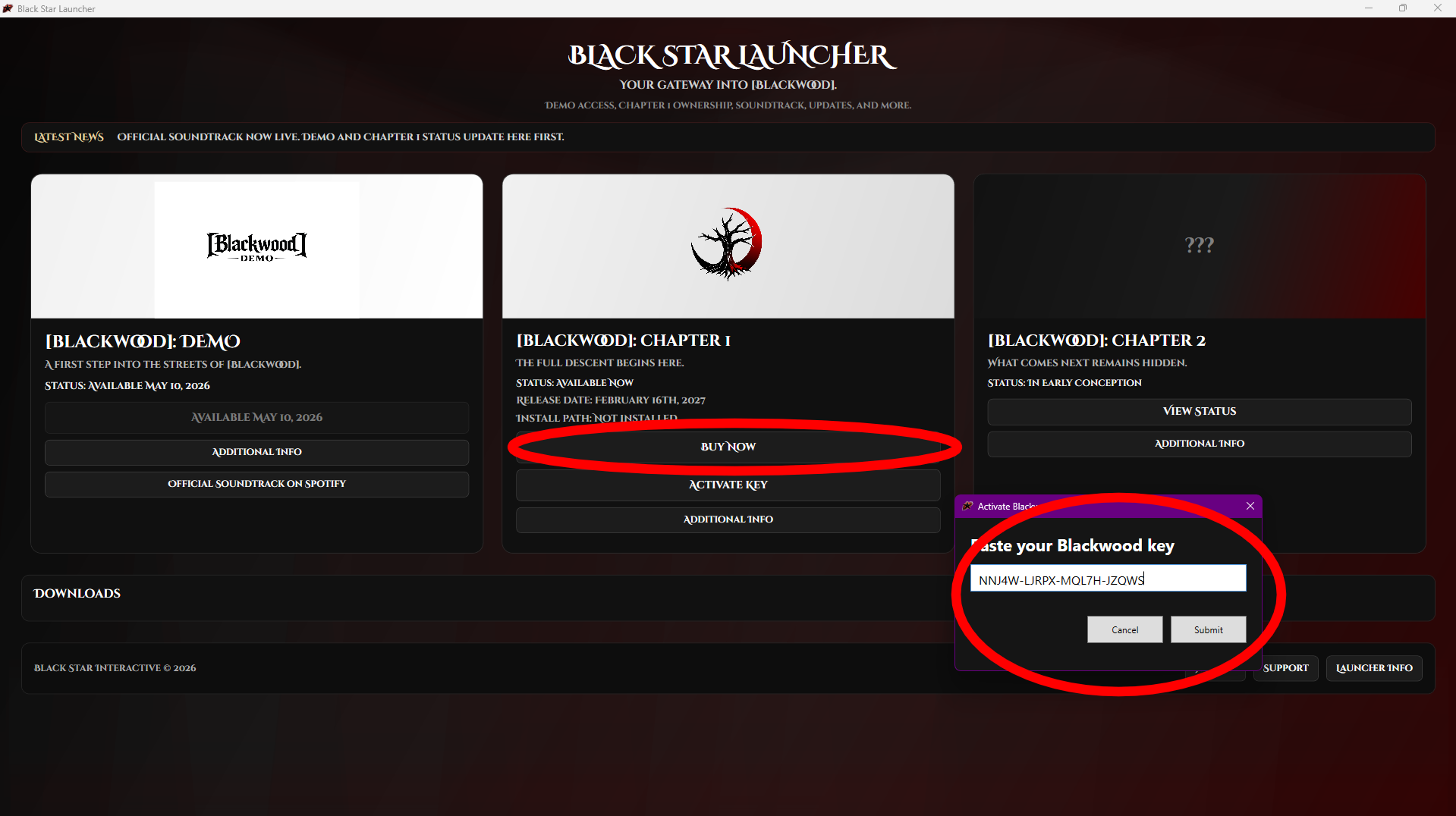
If you bought Chapter 1 and received a key, press the Activate Key button.
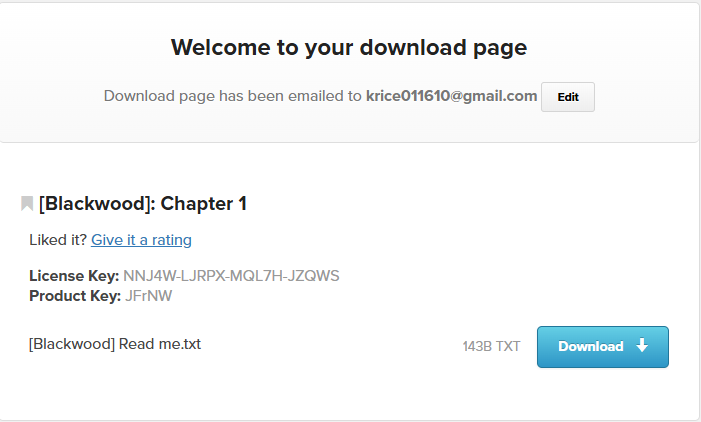
A window will open where you can paste your key. Once you enter it, the launcher will verify it. If the key is valid, your access will be unlocked for that copy.
If the game hasn’t released yet, the launcher can still confirm your ownership and let you know that your copy will unlock on release.
6. How to Download the Game
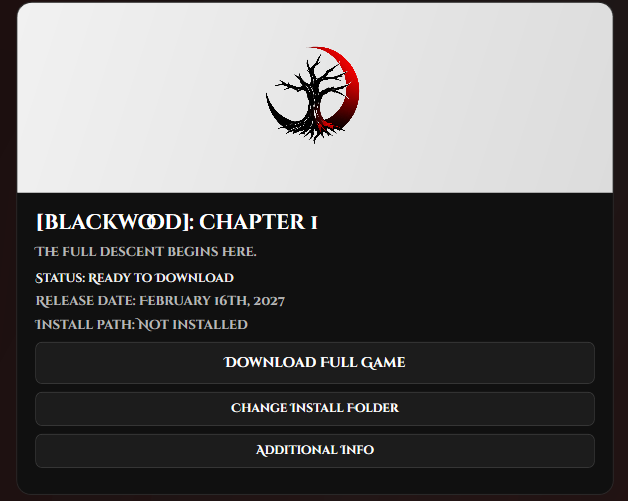
When a release becomes available, a Download button will appear in the correct section.
Press it and the launcher will:
ask where you want the game installed
begin downloading the files
show a progress bar
install everything for you automatically
Once it’s done, the launcher will update the status and show that the game is installed.
7. How to Launch the Game
After the game finishes installing, the launcher will show a Play button.
Clicking that button will launch the installed game directly from your chosen install folder.
If you ever need to change the install location, the launcher also includes an option to change the install folder.
8. How Updates Work
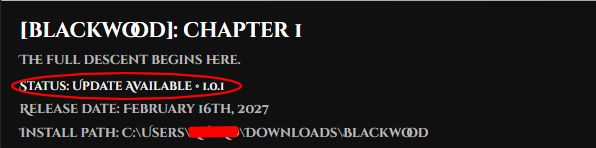
When a newer version is released, the launcher can detect it automatically.
If an update is available, the launcher will show an Update button. Pressing it will download and install the newest version so you don’t have to manually reinstall everything yourself.
This keeps your game up to date through the launcher.
9. Extra Info and Links
The launcher also includes extra links for more information.
Depending on the section, these may take you to:
official status pages
additional release information
Black Star Interactive website pages
support or announcement pages
soundtrack links and other official content
This makes the launcher more than just a downloader. It also acts as a central Blackwood hub.
10. What to Do Right Now
For now, the launcher is mainly here to get you ready early.
If a section says something is not available yet, that’s expected. Right now, the best thing to do is:
keep the launcher installed
check back for updates
wait for Blackwood: Chapter 0
wait for the demo to officially release
Once content goes live, the launcher will make it easy to access it all in one place.

Version 1.0 of the combat test project has just been released and is open for feedback at Blackstarint3ractive@gmail.com